Feature · Timesheets
Real hours, by job, with a location attached.
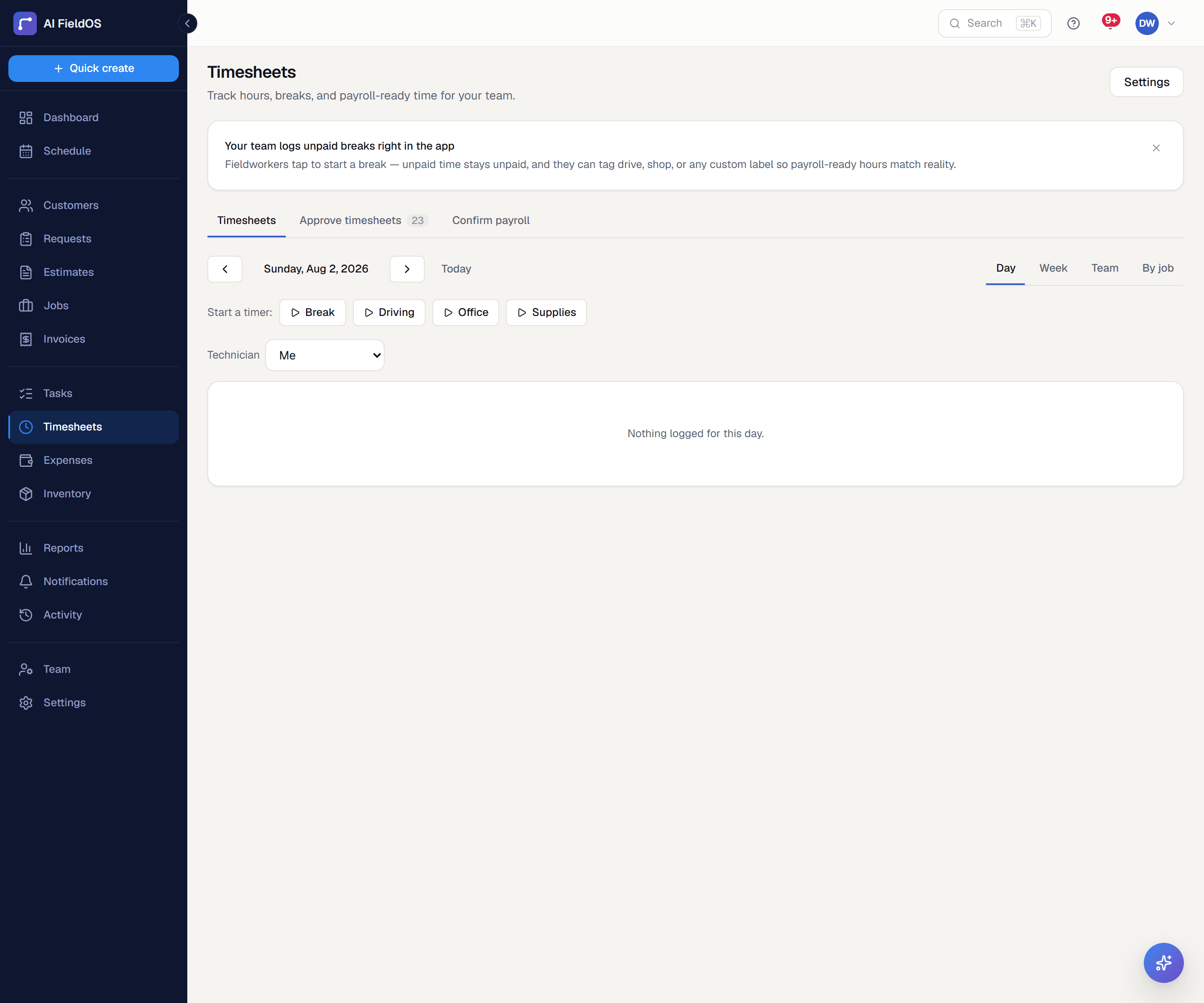
See exactly how many hours each technician worked, which job it was for, and where — with a custom date range, a per-technician breakdown, and a day-by-day or by-job view.
What you get from timesheets
By-job hours, not just totals
See total hours broken down by which job or visit they were logged against, over any custom date range — not just a flat weekly total.
A location with every entry
Job-linked time entries carry a location, so an owner can see where a technician actually was for that block of hours.
Built for approval, not just logging
Clock entries flow into an approval view before they affect payroll or job costing — nothing posts silently in the background. Approving a period actually locks it against later edits.
Three steps, start to finish
Technicians clock in and out from the mobile app, against a specific job or visit.
Owners review day, week, or team views — or switch to the by-job view for a custom date range.
Approved hours feed job-costing (labor cost per job) and can be imported onto an invoice as billable time.
Straight answer
What this doesn't do
Every limit below was checked against the code. We'd rather you find them here than three weeks after migrating.
- Payroll-provider sync is QuickBooks Online only, and it exports hours — it doesn't run a pay run or calculate net pay. No Gusto or ADP integration exists.
- No overtime rules engine — the burnout score flags hours over 40, but pay rates aren't calculated differently above a threshold.
Common questions
Yes — the by-job view supports any custom start and end date, with a per-technician breakdown of hours against each job.
Ready to run your business on it?
Start a 14-day trial today. No credit card, no sales call, no implementation project.
14 days free · No credit card required · Cancel anytime