Feature · Scheduling
One calendar for every visit, technician, and job.
See every scheduled visit across your team in day, week, or month view. Assign a technician, find the next open slot, or let the AI assistant suggest who's free — without leaving the calendar.
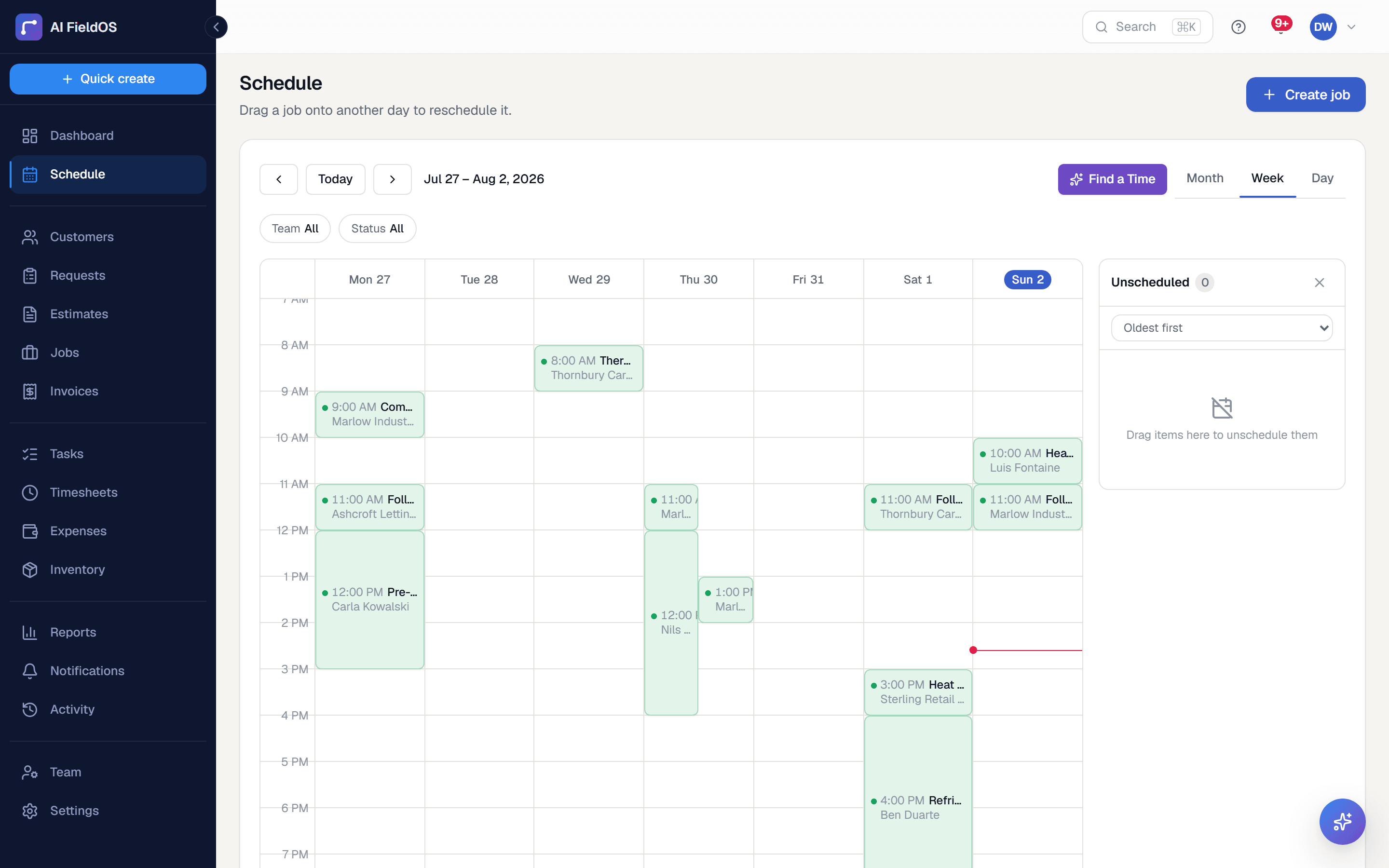
What you get from scheduling
Built around visits, not just jobs
A job can have one visit or a whole series — a recurring maintenance contract schedules its next visit automatically, without creating a brand-new job each time.
Find an open slot in seconds
Ask the AI assistant “when can we fit in a 2-hour job this week” and it checks working hours, time off, and existing assignments to suggest real openings.
Reminders that actually go out
Technicians get a reminder ahead of their visit; customers get one too, by email and text, with a configurable lead time — no manual follow-up required.
Three steps, start to finish
Create a job for a customer, then add one or more visits to it.
Assign a technician directly, or ask the AI assistant to suggest whoever's free soonest.
The calendar, the technician's mobile app, and the customer's reminder all stay in sync automatically.
Straight answer
What this doesn't do
Every limit below was checked against the code. We'd rather you find them here than three weeks after migrating.
- There's no drag-to-resize on the calendar for changing a visit's duration — you edit the visit.
- Availability is a warning, not a hard block. Assigning outside someone's working hours flags it rather than refusing, because real field work runs late.
Common questions
Yes — a job can have any number of visits, each with its own schedule, assigned technician, and checklist. This is how recurring maintenance contracts and multi-day jobs both work.
Ready to run your business on it?
Start a 14-day trial today. No credit card, no sales call, no implementation project.
14 days free · No credit card required · Cancel anytime